

Epic Video Client (EVC)
Troubleshooting FAQ
Audience: Providers, Staff, PatientsWorkflow: Epic Video Client (EVC)
Visit shows patient not checked in even though provider joined
Patient did not join using the Epic-generated link (link was forwarded).
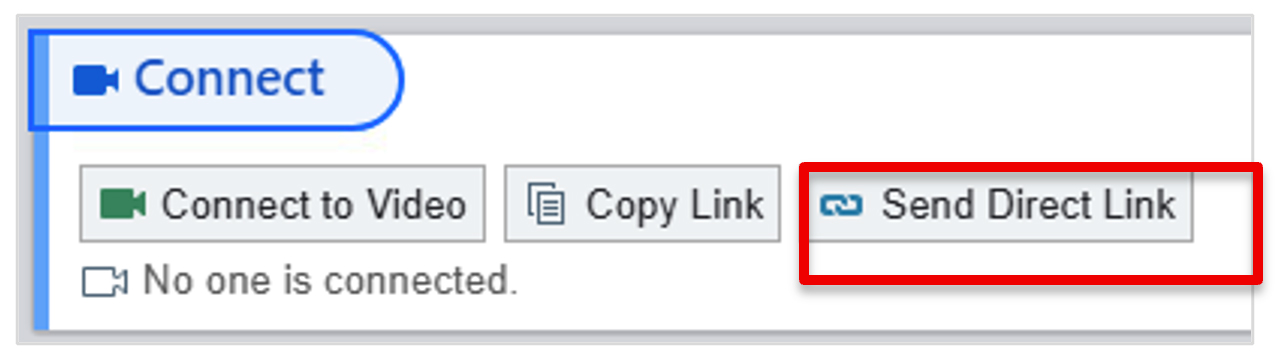
- Confirm the patient joined using the original Epic link (via MyChart or 'Send Direct Link')
- End the visit if the link was forwarded
- Re-send the Epic visit link directly to the patient
- Have the patient check in using the new link
Patient cannot see or hear the provider
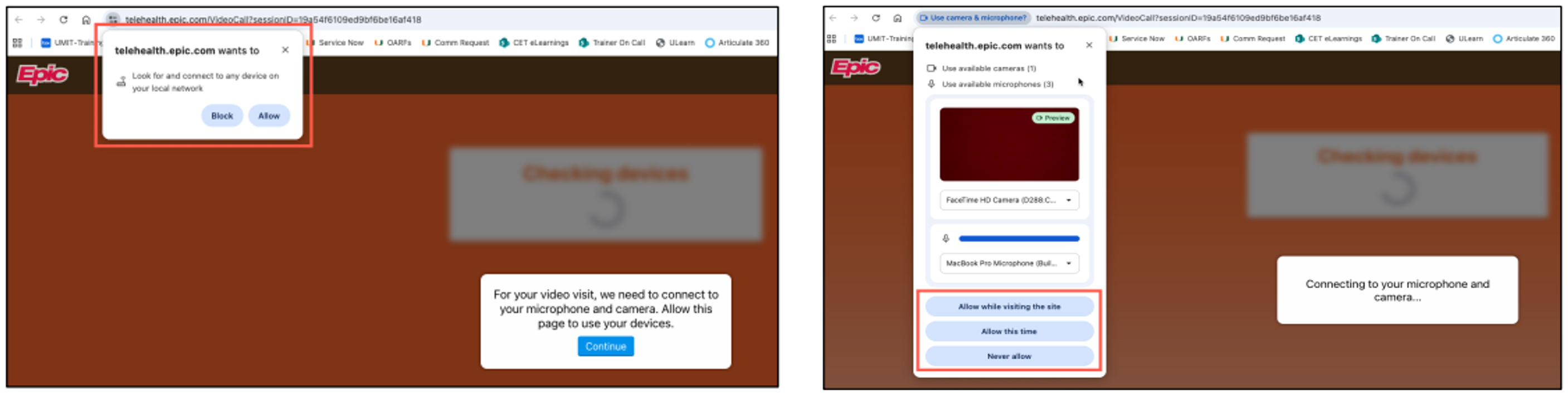
Camera and/or microphone permissions were not granted.
- Refresh the browser
- Select Allow when prompted for camera and microphone access
Provider cannot see or hear the patient
Camera and/or microphone permissions were not granted on the provider device, permissions denied, or incorrect device selected.
- Verify camera/microphone permissions
- Confirm correct devices are selected
- Restart the visit if permissions were denied initially
Virtual background option not available
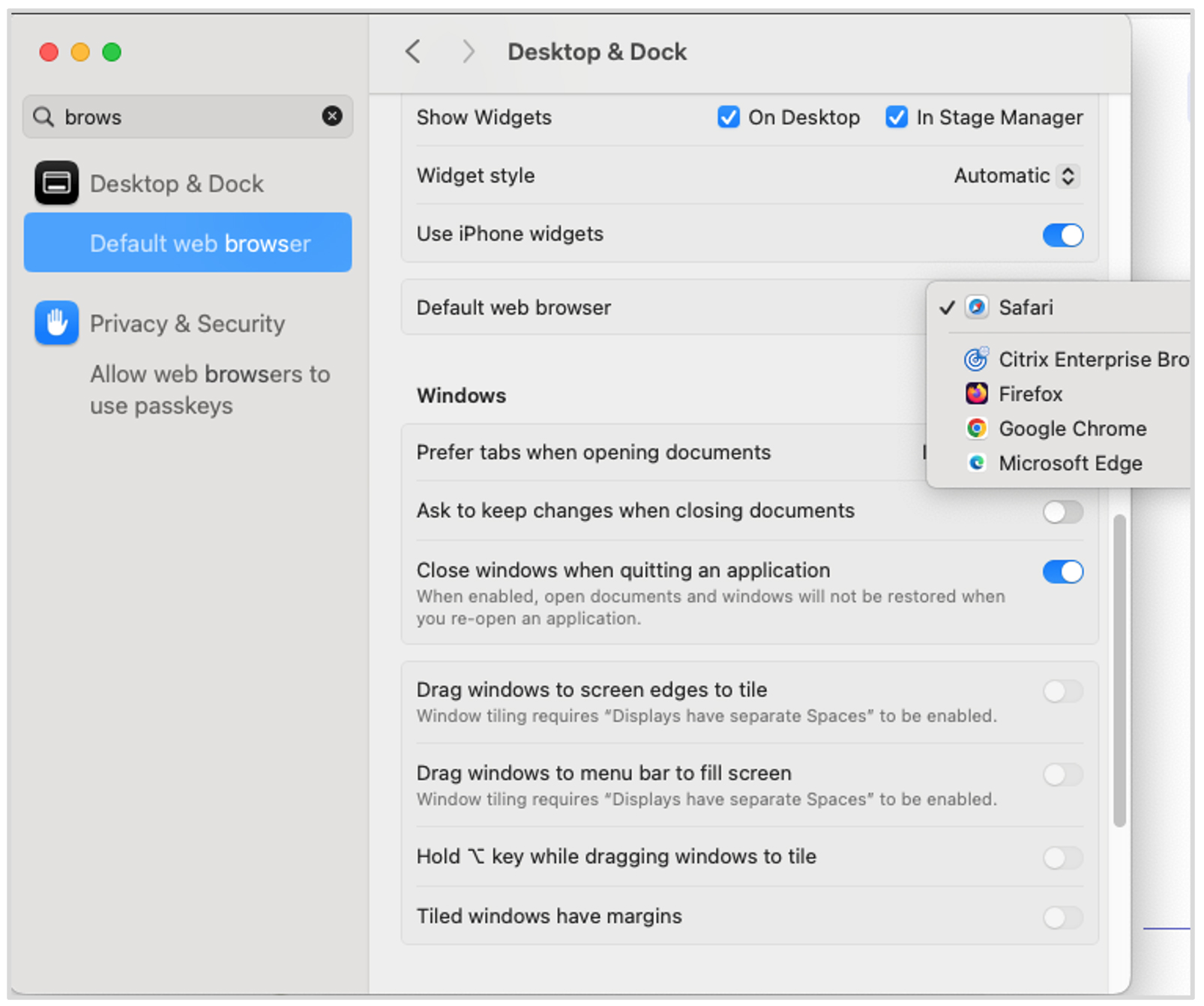
Feature not supported on all devices.
- No action required
Poor audio or video quality
Network or device performance issues.
- Confirm stable internet connection
- Close other applications using bandwidth
Patient repeatedly disconnects
Unstable connection or browser issue.
- Refresh and rejoin the visit
- Use Google Chrome
- Switch to desktop or laptop if on mobile
Camera or microphone options missing
Permissions blocked at browser or system level.
- Update browser permissions
- Restart the browser
- Relaunch the Epic Video visit
Share Screen and Audio issues
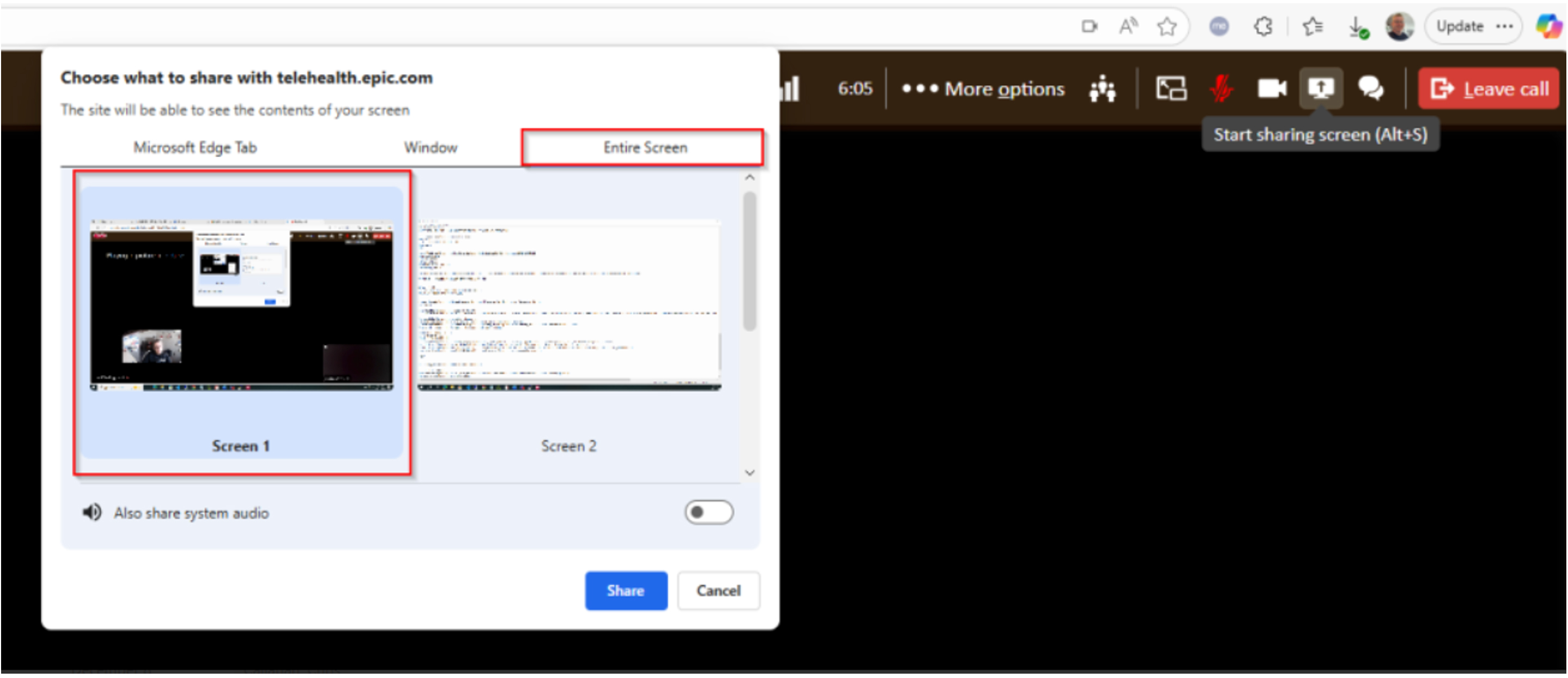
Share option not selected in its entirety.
- Select Share Screen
- Make a selection on what you want to share (Tab, Window, or Entire Screen), then click Share
- To also share audio, select Also Share System Audio
Epic interpreter taking too long / disconnecting
Interpreter pool for video calls is smaller than the pool for audio calls, so it may take longer to join.
- If video is not needed for interpretation, select language (audio)
- If video is needed and the request times out, resend the request
Quick Reference
Recommended browser: Google Chrome
Limited support: Safari or older browsers
Restart the visit if permissions were denied, audio/video issues persist, or the visit freezes.
Appendix A: Epic Video Client (EVC) – Decision Tree
Epic Foundation System–Aligned Troubleshooting Flow
This appendix provides a step-by-step decision tree to assist support staff in quickly identifying and resolving Epic Video Client (EVC) visit issues. The structure and labeling align with Epic Foundation System knowledge base standards.
Step 1: Confirm Patient Check-In Status
- Is the patient marked as Checked In within Epic?
- If NO: Ask how the patient joined the visit.
- If the link was forwarded or accessed by another individual, end the visit.
- Re-send the Epic-generated visit link directly to the patient.
- Have the patient rejoin using the original link.
Step 2: Audio or Video Not Working
- Can the provider see or hear the patient?
- If NO, confirm camera and microphone permissions are allowed.
- Have the user refresh the browser.
- Restart the visit if permissions were denied initially.
Step 3: Camera or Microphone Options Missing
- Are camera or microphone options visible in the browser?
- If NO, permissions may be blocked at the browser or system level.
- Update browser permissions.
- Restart the browser and relaunch the Epic Video visit.
Step 4: Poor Audio or Video Quality
- Is the video or audio lagging or distorted?
- Confirm a stable internet connection.
- Close other applications using bandwidth.
- Recommend Google Chrome if not already in use.
Step 5: Repeated Disconnects
- Does the patient repeatedly disconnect?
- Confirm device type and browser.
- Recommend switching from mobile to desktop or laptop.
- Have the patient refresh and rejoin the visit.
Step 6: Feature Availability (Virtual Backgrounds)
- Is the user attempting to enable a virtual background?
- Confirm device type.
- Virtual backgrounds are not supported on Mac or mobile devices.
- No further action required.
Epic Foundation System Notes
- Use this decision tree as a guided troubleshooting tool.
- Always confirm browser, device type, and permissions before escalation.
- Reference Epic documentation and SmartPhrases where applicable.